
This tutorial will quickly walk you through installing a free edition of Microsoft SQL Server, setting up SQL Server Management Studio (SSMS), and connecting SSMS to your SQL Server instance.
Let’s get started!
Table of Contents
Step 1. Download and install SQL Server Developer 2022
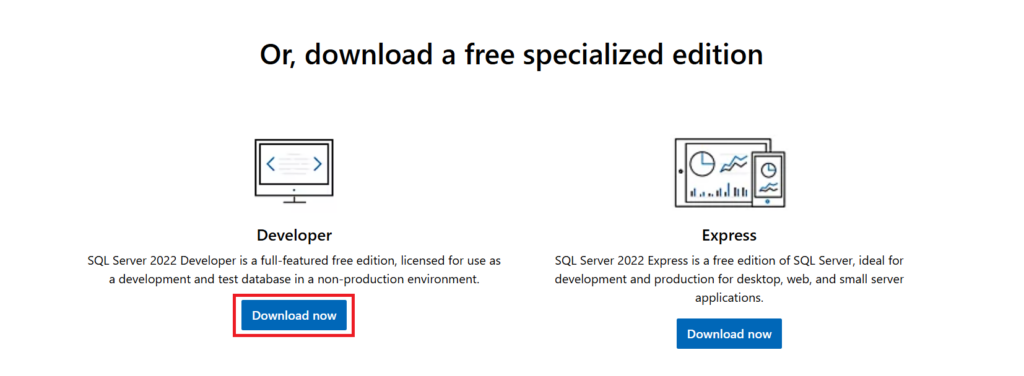
The first step is to download SQL Server from the official Microsoft website. Navigate to the SQL Server Downloads page and scroll down to find the “Developer” edition. This is a full-featured free edition licensed for development and testing purposes. To start the download, click on the “Download now” button.
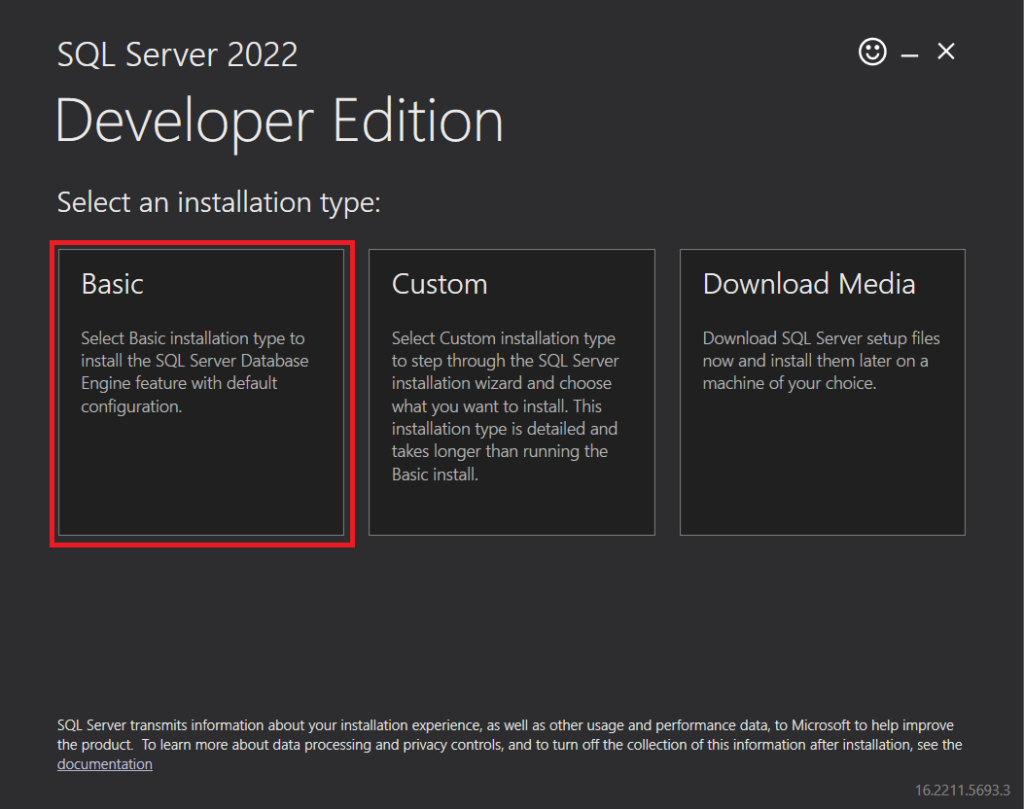
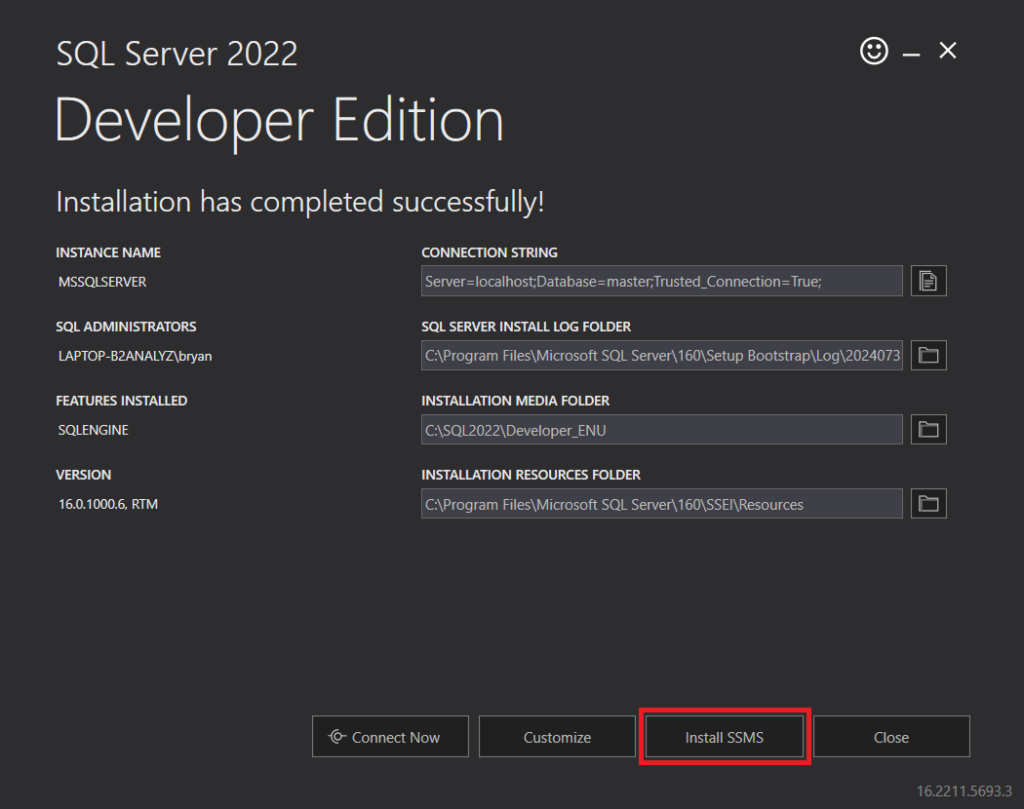
Once the download is complete, run the installation file. The installer will prompt you to choose between three different installation types. Select “Basic”. Accept the license terms and proceed. The installation process may take several minutes. Once complete, a summary screen will confirm the success of the installation.
Step 2. Download and install SQL Server Management Studio (SSMS)
Now that you have SQL Server Developer 2022 installed on your machine, the next step is to install SQL Server Management Studio. Click on the “Install SSMS” button which can be found on the summary screen of the SQL Server installation. In case you’ve already closed the window, navigate to the official SSMS Download page of Microsoft.
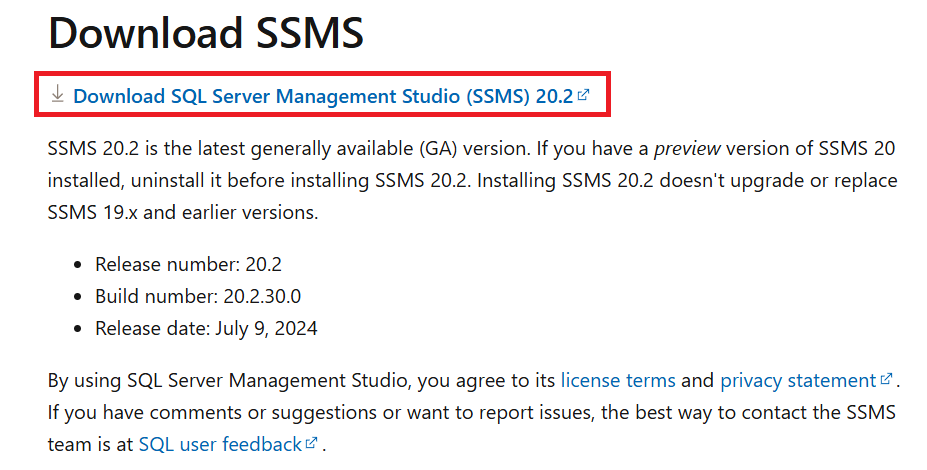
Scroll a little bit down and click on “Download SQL Server Management Studio (SSMS)”.
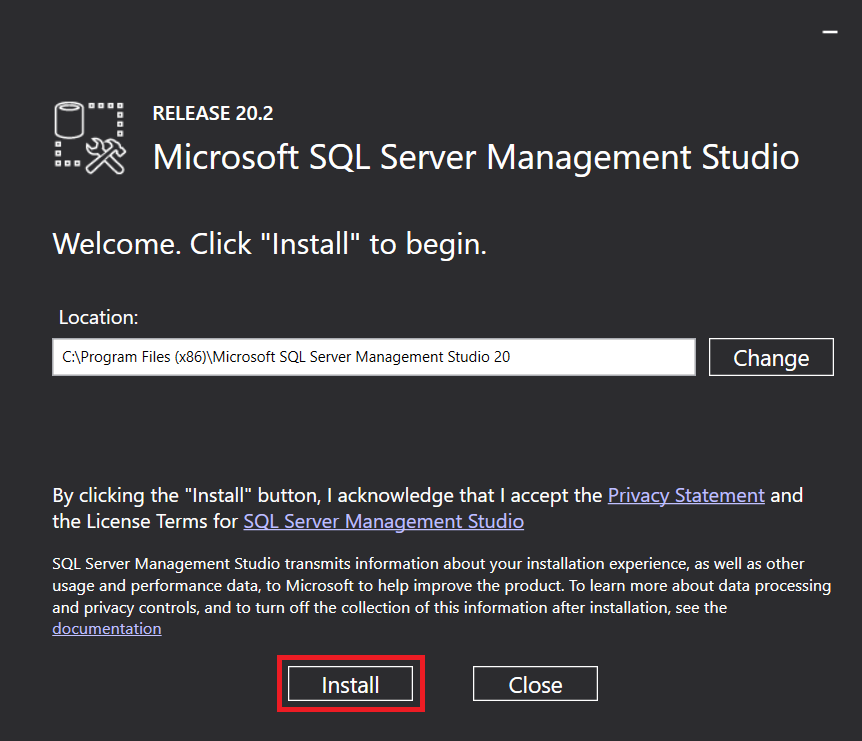
Once the download is complete, run the installation file and click on the “Install” button. The installation is simple and requires minimal input. Once the installation is complete, SQL Server Management Studio will be available in your Start menu.
Step 3. Connect SSMS to your SQL Server instance
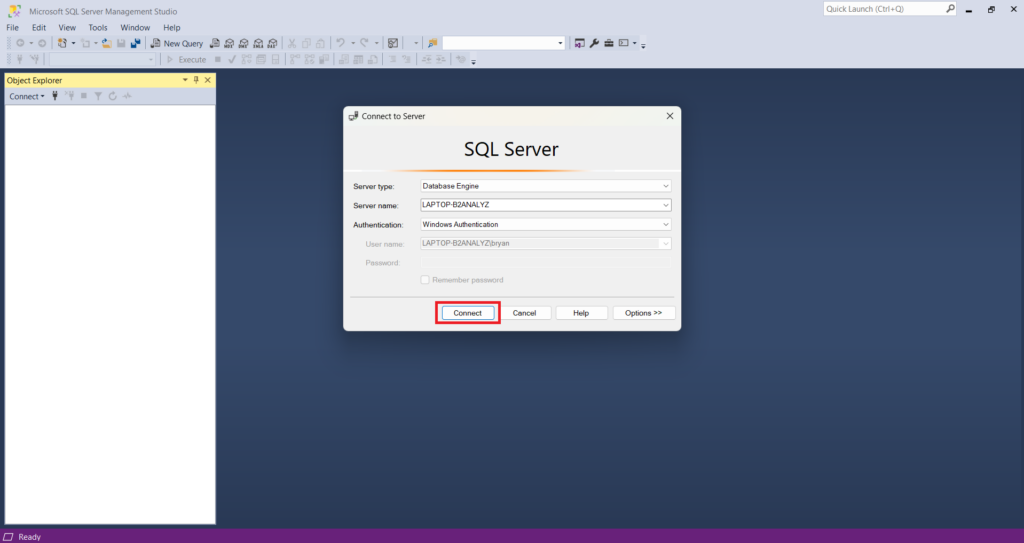
SQL Server Developer 2022 and SSMS are now both installed on your machine. The final step is to connect SSMS to your SQL Server instance. Start by opening SQL Server Management Studio from the Start menu. A “Connect to Server” window will appear automatically. Click on the “Connect” button.
If the connection is successful, you’ll be taken to the SSMS main interface. In case you get an error, make sure to select your SQL Server instance under “Server name”. This will typically be your computer’s name. Still got an error? You may need to allow “Trust server certificate”. This option can be found by clicking on the “Options” button.
Congratulations! You now have successfully installed Microsoft SQL Server Developer 2022 and SQL Server Management Studio on your machine. Check out my next post, where you will learn how to add a free sample database to your SQL Server instance.
 EN
EN  NL
NL